Tesla Parental Controls is Tesla’s built-in setting for teen and new drivers. Behind a PIN, it can cap the car’s speed, limit acceleration to Chill, lock a set of safety features on, and send a curfew notification when the car is shifted into Drive between 11 PM and 4 AM. You set it up on the touchscreen under Controls > Safety > Parental Controls.
This guide covers what each setting does, how to turn it on and off, and how it differs from Speed Limit Mode and Valet Mode. Everything here comes from Tesla’s owner’s manuals (Model 3, Model Y, Model S, Model X, Cybertruck). The manuals do not show a software version, and Tesla’s wording can change between updates, so check your own car’s manual if something looks different.
Is there a Tesla “Teen Driver Mode”?
Not under that name. People search for “Tesla teen driver mode” or “teen mode”, but Tesla’s manuals call the feature Parental Controls. We found no “Teen Driver Mode” in the Tesla owner’s manual pages we checked. Tesla announced Parental Controls in its Q3 2024 update, describing it as letting parents “apply maximum speed limit, reduce acceleration to Chill, force-enable safety settings and enable curfew notifications.”
How to turn on Tesla Parental Controls
- Put the car in Park.
- On the touchscreen, touch Controls > Safety > Parental Controls.
- Turn on the controls you want (see below).
- Touch Confirm, then enter a PIN.
Two things to know first:
- Speed Limit Mode must be off. The manual says: “You cannot enable parental controls if Speed Limit Mode is enabled.”
- App access needs a recent app. You can also open Parental Controls from the Tesla mobile app, version 4.34.5 or higher.
What each Parental Controls setting does
Limit Speed
Caps the speed the car can be driven at. The manual does not list the range of speeds you can choose. (Speed Limit Mode, covered below, does list one: 50–120 mph.)
Reduce Acceleration
Limits acceleration to Chill. This is a separate toggle, so you can cap speed without forcing Chill.
Require Safety Features
Turns on a set of safety features (if your car has them). Drivers can’t change them while Parental Controls is on. The Model 3 (US) manual lists:
- Automatic Emergency Braking
- Obstacle-Aware Acceleration
- Automatic Blind Spot Camera
- Blind Spot Collision Warning Chime
- Automatic 911 Call (United States only)
- Allow Mobile Access
- Track Mode
- Park Assist Chimes
- Lane Departure Avoidance: set to Assist
- Speed Limit Warning: set to Chime
- Speed Limit: set to Relative, Offset +5 mph (8 km/h)
- Forward Collision Warning: set to Early
The list varies by model and region. Track Mode appears only in the Model 3 manual. The Cybertruck list has no Park Assist Chimes. The Model Y, S, X and Cybertruck manuals list Automatic 911 Call without the “United States only” note. The Australian Model 3 manual gives the offset as +8 km/h. Tesla also notes that “depending on market region, vehicle configuration, options purchased, and software version, your vehicle may not be equipped with the listed features.”
Send Curfew Notifications
Turns on curfew notifications from 11 PM to 4 AM. If someone shifts the car into Drive after curfew starts, the Tesla app sends a notification “to all phone keys paired with the vehicle.” The manual doesn’t mention any way to change those hours, so treat the window as fixed. Every phone key gets the alert, including the teen’s phone if it is set up as a key.
How to turn off Parental Controls
- With the car in Park, touch Controls > Safety.
- Go to Parental Controls and touch Off.
- Re-enter the PIN you created.
If you forget the PIN, touch the Enter your Tesla Account credentials link on the touchscreen and follow the instructions. Tesla’s manual is explicit: “You cannot disable parental controls from your mobile device.” You turn them off in the car.
Does Parental Controls apply to every driver profile?
Tesla doesn’t document this. The manual doesn’t say whether Parental Controls is vehicle-wide or tied to a driver profile. If you share the car with a teen, check how it behaves on your car before you rely on either. For example, see whether the limits stay on when you switch to your own profile.
Parental Controls vs Speed Limit Mode vs Valet Mode
Tesla has three ways to restrict how the car is driven. This table compares what the manuals document for each.
| Parental Controls | Speed Limit Mode | Valet Mode | |
|---|---|---|---|
| Speed cap | Yes; range not documented | 50–120 mph (80–193 km/h) | Fixed 70 mph (113 km/h) |
| PIN | Yes | 4-digit | 4-digit, to cancel |
| Acceleration | Chill, optional | Chill, automatic | Limited |
| Safety features locked on | Yes | Not documented | Not documented |
| App notifications | Curfew, 11 PM–4 AM | Within ~3 mph (5 km/h) of cap | None documented |
| Best for | Teen or new drivers | A simple speed cap | Handing keys to a valet |
A few details the table can’t fit:
- Speed Limit Mode (manual): when the car gets within about 3 mph (5 km/h) of the cap, “a chime sounds, the touchscreen displays a message, and Model 3 sends a notification to the mobile app.” On Model S and X the message appears on the instrument cluster. You can turn it on from the app under Security > Speed Limit Mode. Tesla warns that driving downhill can push the car past the limit.
- Valet Mode (manual): this is a built-in driver profile. It also locks the frunk and glovebox, hides Home and Work locations, and turns off voice commands, Driver Profiles and some apps. The Model 3 manual also requires the key card to drive. You can start and cancel it from the mobile app without a PIN while the car is in Park. Our Tesla Valet Mode alert guide covers it in detail.
- Parental Controls and Speed Limit Mode don’t stack. You can’t turn on Parental Controls while Speed Limit Mode is on.
What Parental Controls doesn’t tell you
Parental Controls limits the car. It tells you very little about how the car was actually driven. Its only documented alert is the fixed 11 PM–4 AM curfew notification. Tesla’s manuals don’t describe:
- an alert at a speed you choose, other than Speed Limit Mode’s near-cap notification
- curfew hours you set yourself
- zone or geofence alerts
- a per-drive record of top speed or hard braking in the Tesla app (Tesla Insurance’s Safety Score, where offered, is a separate product)
How Sentry Driver complements Parental Controls
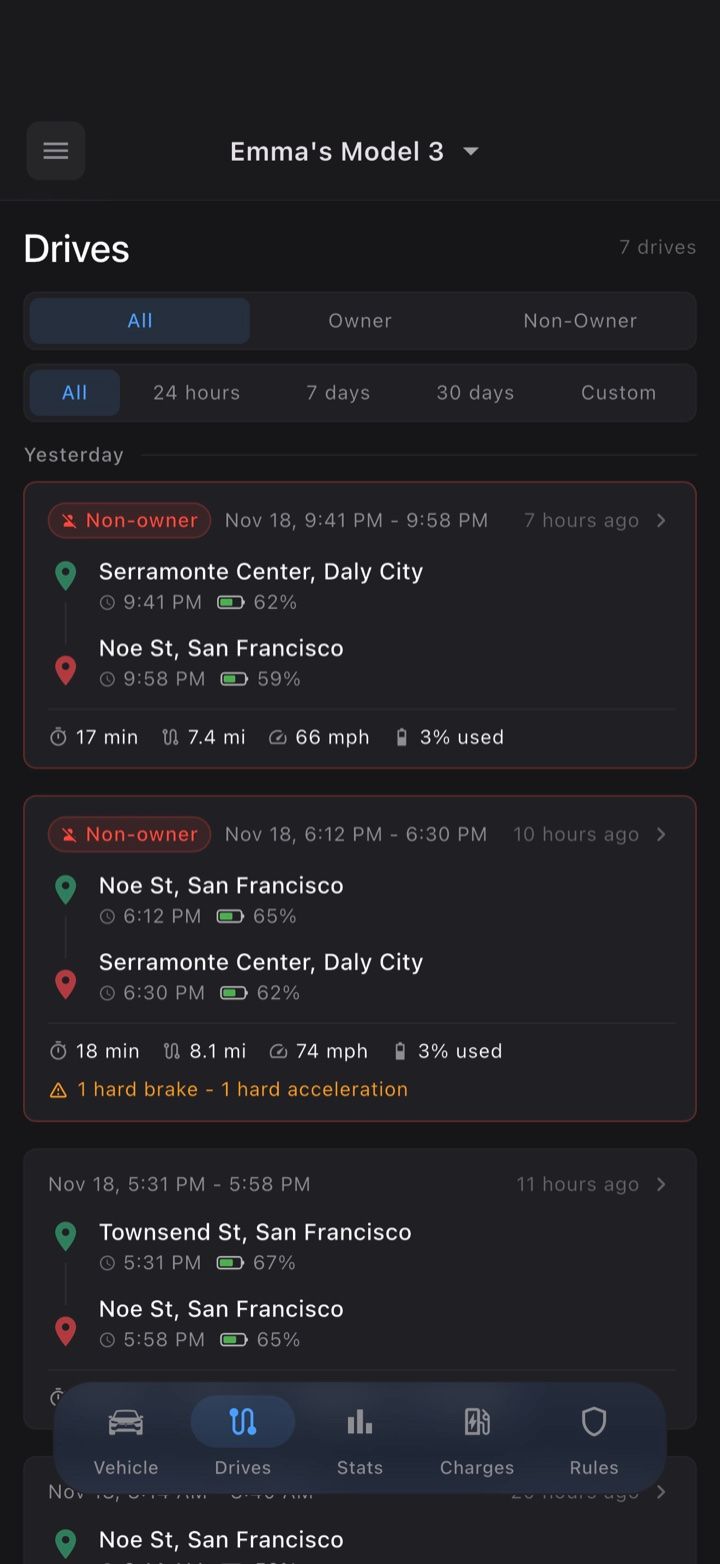
Sentry Driver doesn’t limit or control the car. It’s a monitoring app that connects through Tesla’s official Fleet API and sends you alerts based on rules you set:
- Speed alerts at your own threshold, in mph or km/h. See Tesla speeding alerts.
- Curfew alerts with your own start and end times and days of the week. See Tesla curfew alerts.
- Geofence alerts for allowed or forbidden zones.
- Drive history with the route, max speed and hard-braking/acceleration counts for each drive. See who drove my Tesla and how fast.
- Owner-absent rules. Each rule can be set to fire only when your phone isn’t detected in the car (via Bluetooth). Sentry Driver doesn’t identify who is driving. It only labels each drive Owner or Non-Owner, and detection can miss, for example if your phone’s Bluetooth is off.
Many families use both: Parental Controls to cap what the car can do, and Sentry Driver to see how it was driven. For a side-by-side breakdown, read Sentry Driver vs Tesla Parental Controls. For the teen-driver setup, see teen driver monitoring.