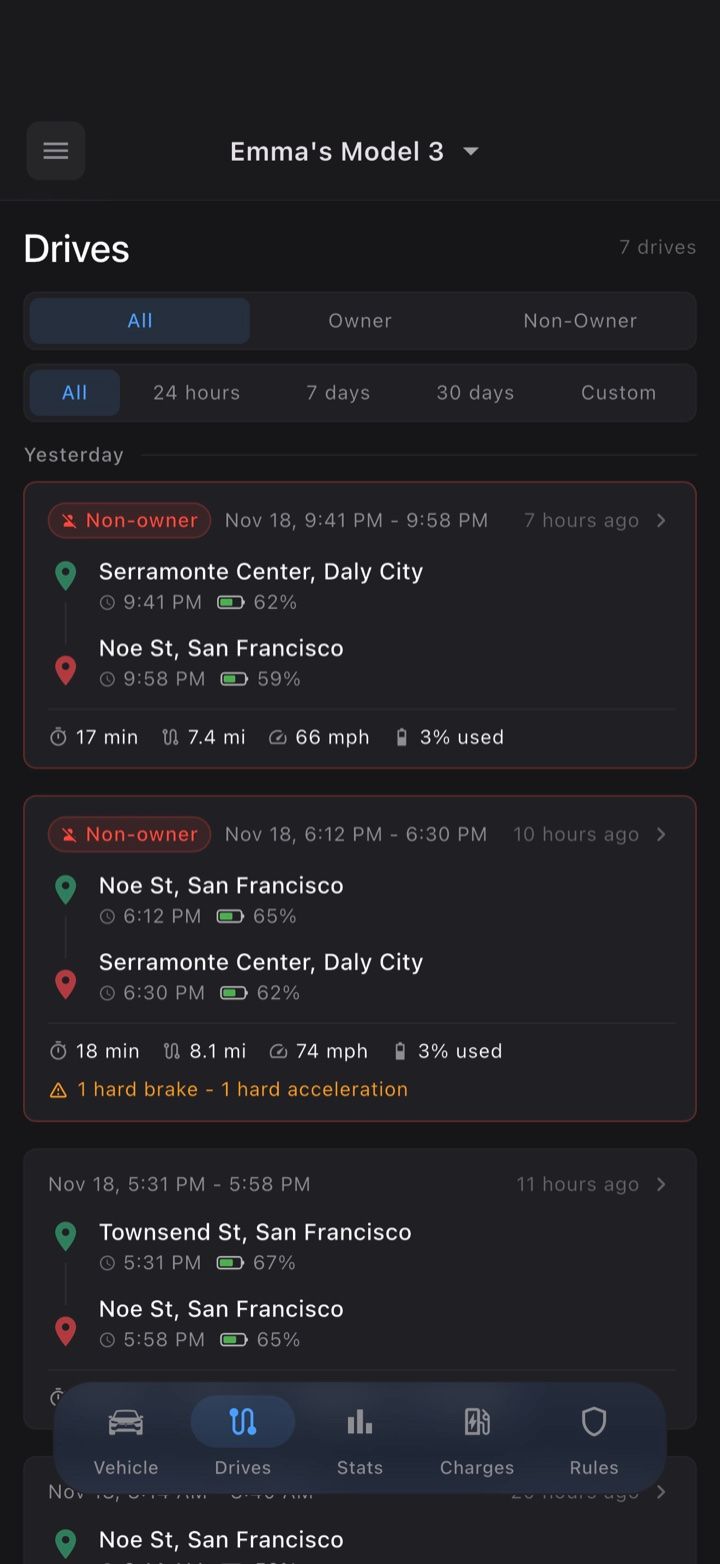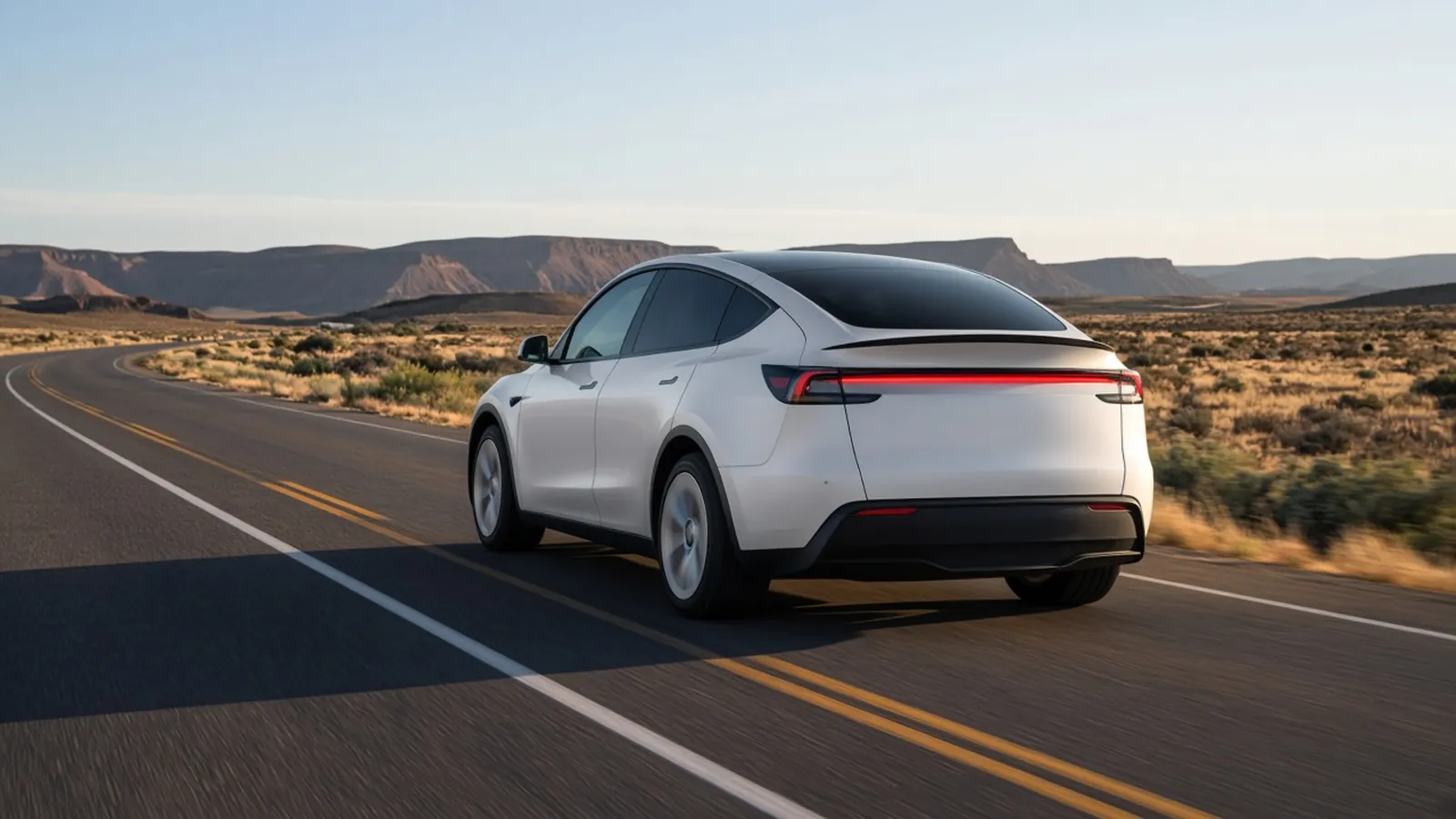
Trip Planner is the road trip planner built into your Tesla’s navigation. Turn it on under Controls > Navigation, enter your destination, and if the drive needs charging, the route adds Supercharger stops, a recommended charging time at each one and an estimate of how much energy you’ll have when you reach each charger. If you want a bigger cushion at the end, select Set Arrival % after entering the destination. Tesla notes that Trip Planner works “if available in your region”, so the options can vary by market.
Tesla’s current US owner’s manuals for Model 3, Model Y, Model S, Model X and Cybertruck describe Trip Planner in the same words, apart from the vehicle name, and the UK Model 3 manual matches them. Where a detail below comes from only some of the manuals, we say which.
Turn on Trip Planner
There are two ways to reach the setting. From the touchscreen, go to Controls > Navigation and switch on Trip Planner. Or, once you’ve started navigating somewhere, touch … on the map, touch the navigation settings icon that appears, then touch Trip Planner. Tesla describes the setting as adding Supercharger stops “as needed”, with the goal of minimizing the total time you spend driving and charging. It also notes that the navigation settings on offer can vary by region and vehicle configuration.
Check the setting before a long drive. Tesla only promises automatic Supercharger stops when Trip Planner is enabled, so with it off, expect plain directions.
What the route shows you
With Trip Planner on and a destination that needs charging, the turn-by-turn direction list includes the Supercharger stops, how long Tesla recommends charging at each, and how much energy the car expects to have when it arrives at each charger.
After you enter a destination, you can choose between Faster and Fewer stops. The manuals don’t explain the trade-off beyond those two labels, so if you’re unsure, look at both versions of the route before you set off.
The battery icon on the turn-by-turn list shows how much energy Tesla predicts you’ll have left at the destination. Touch it to see an estimate for a round trip back to your current location, which is the quickest way to answer “can I get there and back without charging?”
You can also strip the charging out. Remove all charging stops, at the bottom of the turn-by-turn list, leaves plain directions, and Add charging stops puts them back. If you remove them and the trip really does need a charge, the list may show an alert that charging is needed to reach your destination. You’ll see the same kind of alert if the car predicts you won’t have enough energy and there’s no Supercharger on the route.
Choose how much charge to arrive with
After entering a destination in the car, select Set Arrival % (Tesla adds “if available”) and use the slider to choose how much energy you want when you arrive.
The Tesla app has matching controls. In the Mobile App section of the Model 3 manual, Tesla describes Set Arrival Energy for the level you want at the end of the trip (it needs app version 4.54.5 or higher) and Set Departure Energy for the charge you expect to start with. The departure figure matters, because charging stops can be added or adjusted depending on it. If you won’t leave home full, tell the planner.
The manuals don’t recommend a particular arrival percentage, so it’s your call. A bigger buffer makes sense when there’s no charging at the destination, when you’ll be driving around once you get there, or in cold weather: the Model 3 manual lists cold or hot weather and wind among the conditions that raise energy use while driving. On a familiar route with a charger at the hotel, a smaller buffer is usually fine.
Plan from your phone or computer
You don’t have to sit in the car to plan a road trip. The Model 3, Model Y and Model S manuals describe editing a route in the Tesla app: go to Locations > Navigate, enter a destination, touch Edit Trip > Add Stop to change the route, then touch Send to Car to share the trip with your vehicle. Tesla lists app version 4.27.5 or newer for this and adds “if available in your region”. The Model 3, Model Y, Model S and Cybertruck manuals also mention that you can start navigation remotely by using the share function on your iOS or Android device, once you’ve allowed access to the Tesla app.
For rough planning at a desk, Tesla has a web Trip Planner at tesla.com/trips. When we looked at it from the US on November 25, 2026, without signing in, it let you pick a vehicle, choose Summer or Winter as the travel season, set a starting charge and a preferred arrival charge, and toggle Superchargers and Destination Chargers. The result showed the total time, the charging stops with a charge time at each, and the battery percentage at every point. Tesla presents it as informational only and warns that actual range can vary significantly with factors such as driving style and temperature. We didn’t see a way to send that plan to a car, so treat it as a preview and set up the real trip in the car or the app.
Get the battery ready for Supercharging
Navigate to the Supercharger rather than just driving to it. When you navigate to a Supercharger with Trip Planner, the car may use some energy to pre-heat the battery so it arrives at an optimal temperature, which reduces charging time. In some regions this also works for third-party fast chargers. The Model 3 manual explains how: search for the fast charger in the car’s navigation and select it as the destination, and the car recognizes it as a fast charger and preconditions the battery.
Timing matters. In the cold-weather advice in its Model 3 manual, Tesla recommends using Trip Planner to navigate to a charging location for at least 30 to 45 minutes before you arrive. If the drive to the charger is shorter than that, it suggests preconditioning the battery before you set off.
Don’t be surprised by a couple of side effects. The Model 3 manual notes that in some circumstances, such as cold weather, it’s normal for the motors and other components to make noise while they generate heat to warm the battery. On cars with a heat pump, odorless steam from the front of the car while Supercharging in cold temperatures is also normal.
Why the arrival estimate changes
The arrival figure is a prediction, not a promise. The Model 3 and Model Y manuals say it’s based on driving style, including predicted speed, and on environmental factors such as wind speed and direction, current and forecast temperatures, air density and humidity. The car keeps learning how much energy it uses, so if you’ve driven hard for a while, future predictions assume higher consumption. Some inputs, such as forecast temperatures and wind speed, are only available when the car has an internet connection. If you bought your Tesla used, Tesla recommends a factory reset (Controls > Service > Factory Reset) so the predictions are as accurate as possible.
As you drive, the car keeps updating the estimate, and two warnings can pop up on the turn-by-turn list. A yellow warning means you have very little energy left to reach the destination and need to drive slowly to conserve it. A red warning means you must charge to get there.
On a yellow warning, the tips from the Model 3 manual’s Getting Maximum Range page apply. Slow down and avoid rapid acceleration. When it’s safe, ease off the accelerator instead of braking so regenerative braking can feed energy back to the battery. Use less heating and air conditioning (seat and steering-wheel heaters, if your car has them, are more efficient than heating the cabin), and close the windows. Chill Mode and Speed Assist can help you keep acceleration and speed in check. On a red warning, add a charging stop.
The same Model 3 page describes a safety net that works without a route. The car monitors its energy level and how close it is to known charging locations. If you’re at risk of driving beyond their range, the touchscreen offers a list of chargers within range, and picking one gives you directions plus the predicted energy on arrival.
Before you leave, Tesla’s travel tips recommend checking your tire pressure against the label on the center door pillar and inspecting the tires for bulges, foreign objects, cuts or wear. The Model 3 manual adds that heavy cargo, roof or trunk racks and poorly maintained wheels and tires all increase energy use.
At the charger and on the road
While you’re Supercharging on a planned route, the charging screen shows how much longer you need to charge to reach your next Supercharger stop, or the destination if no more charging is needed. You can keep an eye on it in the Tesla app too. If you charge for a shorter or longer time than suggested, the charging times at later stops adjust to match, so unplugging a little early is fine if the next leg allows it.
If a Supercharger on your route has an outage, Trip Planner shows a notification and tries to reroute you to a different Supercharger. To check a site yourself, Tesla’s travel tips say to tap the lightning bolt icon in navigation, then a red Supercharger pin, to see the number of open stalls, status updates and the maximum charge rate. Hotels, restaurants and shopping centers with Destination Charging show up as gray pins.
Non-Tesla chargers need a manual step. The Third-Party Charging Stations option under Controls > Navigation is off by default. Even with it on, Trip Planner won’t automatically route you to third-party stations, but you can add them to your route yourself.
When you stop overnight, Tesla’s travel tips recommend leaving the car plugged in when you’re away from home, and say it won’t overcharge if it stays plugged in for a long time.
Before a family member takes the car on a long trip
If someone else is taking your Tesla on a long drive, a few minutes of setup helps. Check that Trip Planner is switched on in the car. If your app supports it, plan the trip in the Tesla app and send it to the car, so the route is waiting when they get in. Agree on an arrival buffer and set it with Set Arrival %, especially if they’re heading somewhere without charging. Then explain the two warnings: yellow means slow down, red means charge.
If you’d also like to see how the car is being driven while it’s away, without restricting it, our guide to lending your Tesla covers that.
Common questions
Does Tesla’s Trip Planner include non-Tesla chargers?
Not automatically. Trip Planner routes through Superchargers, and third-party stations stay hidden until you turn on Controls > Navigation > Third-Party Charging Stations. You can add a third-party charger to your route yourself, and in some regions selecting one as your destination lets the car precondition the battery for it.
How do I set the battery percentage I arrive with?
In the car, enter a destination, select Set Arrival % (if available) and use the slider. Tesla’s Model 3 manual also describes Set Arrival Energy in the Tesla app (version 4.54.5 or higher) for when you plan the trip on your phone.
Why does my Tesla’s arrival percentage keep dropping?
The estimate updates with your actual speed and driving style and with wind, temperature and other conditions. Tesla’s Model 3 manual lists higher speed, cold or hot weather, wind, climate use and heavy cargo among the things that raise consumption. Slow down, use less cabin heating or cooling and follow any charging stop the car adds. A red warning means you need to charge.
Can I plan a Tesla road trip before I get in the car?
Yes. In the Tesla app, use Locations > Navigate, adjust the stops with Edit Trip and touch Send to Car (described in the Model 3, Model Y and Model S manuals). Tesla’s web planner at tesla.com/trips is useful for a rough preview of stops and charge times.
How long before a Supercharger should I navigate to it?
In the cold-weather advice in its Model 3 manual, Tesla recommends navigating to the charger for at least 30 to 45 minutes before you arrive so the battery reaches a good temperature. If the drive is shorter, precondition the battery before you leave.